You tried to add a store card to Apple Wallet and there was no button for it. That's not you missing a setting. Apple Wallet has no built-in way to scan a random barcode and turn it into a loyalty card, and most retailers still haven't built the digital version of their own card.
The mix-up most people run into
Switching from Android brings a specific assumption: Wallet should work like Google Wallet. Open the app, tap "Add loyalty card," scan the barcode on the physical card, done. That's exactly how it works on Android. On iPhone the path is different, and knowing that upfront saves you ten minutes of hunting for a button that isn't there.
Why Apple Wallet behaves differently
Apple Wallet accepts loyalty cards in one way only:
- A pass the retailer built. If a chain has developed a Wallet-compatible pass, you'll see an "Add to Apple Wallet" button in their app or in the sign-up confirmation email. Tap it and the card lands in Wallet automatically.
- Nothing else, natively. There's no generic tool for building a loyalty card from scratch out of a physical one. If the retailer never built that pass, their card simply can't get into Wallet.
Google Wallet and Samsung Wallet solve this differently. Both let you scan any barcode and create a generic loyalty card even when the retailer hasn't set anything up. That gap is behind most of the confusion people run into with this on iPhone.
What actually works on iPhone
One app for your whole household
Shopping lists and loyalty cards on every device — free to start, Pro when you want to share in real time.
If your store doesn't offer a Wallet pass, three options remain:
- The retailer's own app. Many chains show the loyalty card barcode right inside their app. It works, but it means a separate app for every store you shop at.
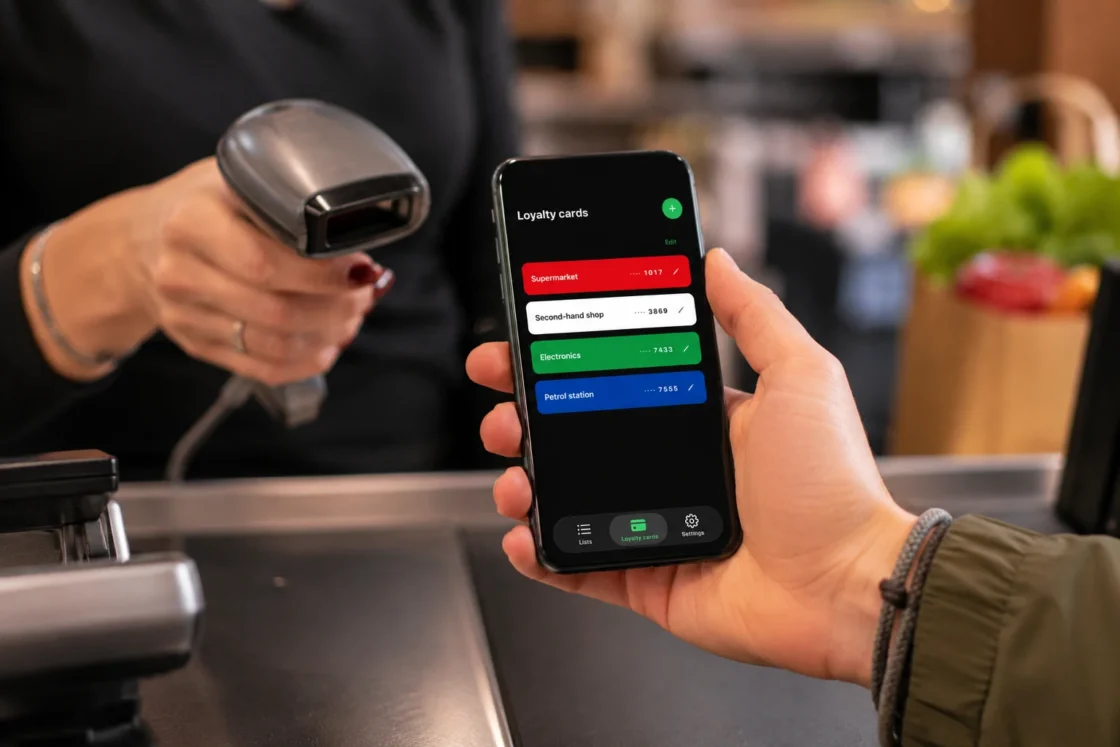
- A third-party app that holds every card. Scan the physical card once, the app stores the barcode, and shows it full-screen at checkout. It's the fastest way to ditch the plastic without installing five separate apps.
- The physical card itself. Still an option, and exactly the friction this article is meant to solve.
How to do it with Spesary
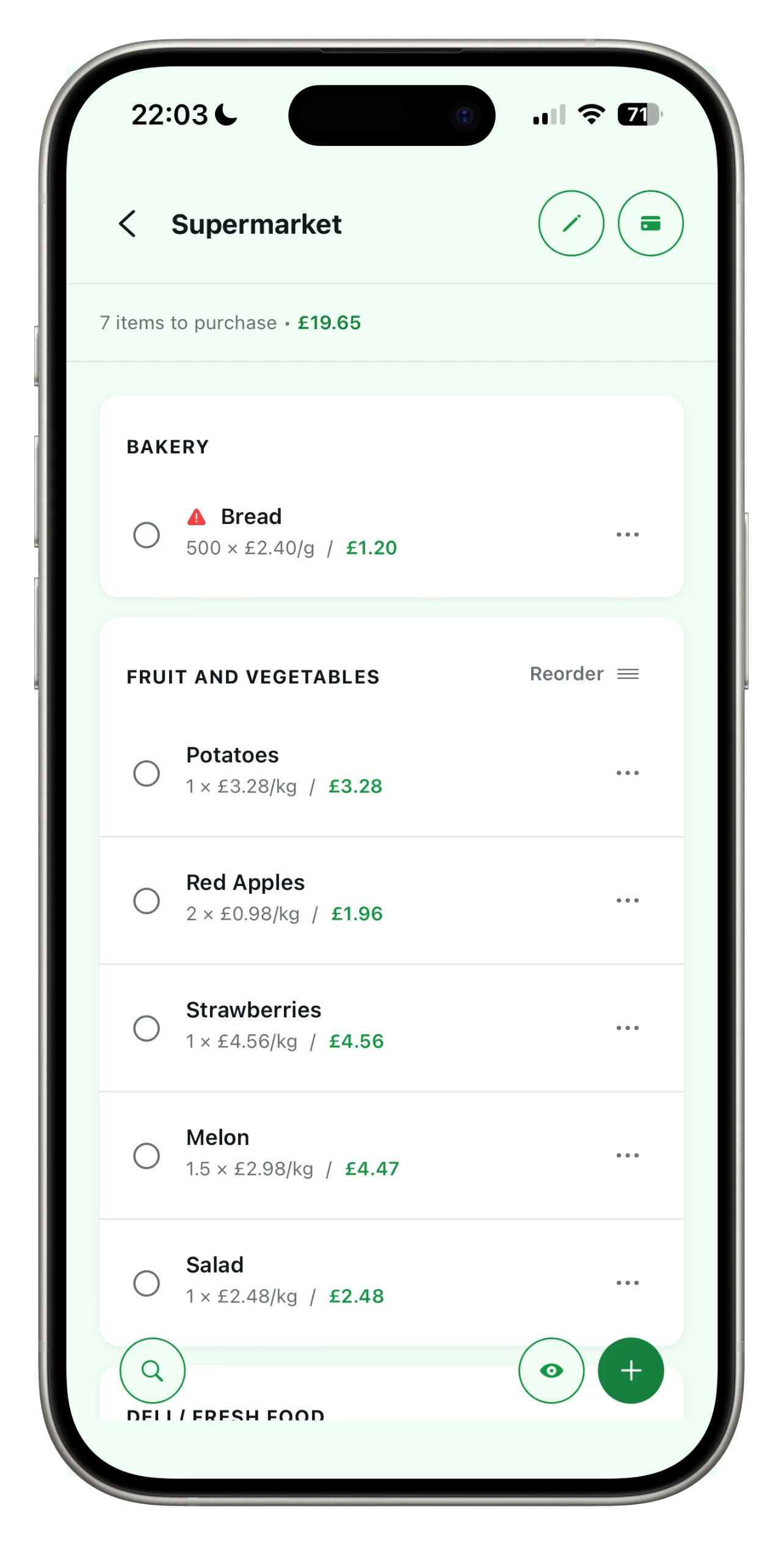
Spesary keeps your loyalty cards in the same place as your shopping list, so checkout doesn't mean switching between two apps.
- Open the Loyalty Cards section and tap "Add card."
- Point the camera at the barcode on the physical card. Spesary recognizes it and saves it on its own. You can also type in the number by hand.
- Name the card so you can spot it at a glance.
- At checkout, open the card and the barcode fills the screen, ready for the scanner.
You can also link a loyalty card to that store's shopping list, so walking into the store puts both the list and the card on the same screen.
Full walkthrough here: All your loyalty cards, in one list.